Analytics & conversion tracking guide
How to test Google Ads conversion tracking before trusting your results.
A conversion in Google Ads is evidence that the platform attributed a configured signal under its settings. By itself, it does not prove that a call connected, a form reached your CRM, an appointment was booked, or a sale occurred.
Start with the real customer action, then trace the evidence forward. A useful test follows the action through the browser, tag and analytics tools, Google Ads, and—when appropriate—the business record.
The short answer: a recorded conversion proves less than many reports imply.
It can confirm that Google Ads received or modeled an eligible signal and assigned it according to the action’s configuration and attribution rules. You still need separate evidence for delivery, lead quality, sales, and revenue.
Answer first
Begin by naming the action you actually care about.
“Track conversions” is not a testable requirement. A tracking plan becomes useful when it names a specific action, the technical signal that represents it, the Google Ads setting that governs it, and the later record that would confirm a business outcome.
Example: “Record a successful consultation-form submission after the server confirms acceptance” is testable. “Track leads” is not precise enough, because a page view, button click, form start, submission, CRM contact, qualified inquiry, and sale are different events.
Define before testing
Write a small measurement contract.
Before opening a debugger, write down the action, signal, and outcome. This keeps a clean technical test from being mistaken for business success.
What should the person complete?
For example: a confirmed form submission, a connected call that meets a duration rule, or a completed appointment booking.
What exact event represents it?
Name the event, trigger condition, required parameters, conversion action, count setting, and any transaction or order identifier.
What later record matters?
Decide whether the useful outcome is an accepted inquiry, qualified lead, attended appointment, sale, or another documented stage.
Failure-diagnosis matrix
Test the chain one layer at a time.
When a number looks wrong, locate the first layer where the expected evidence disappears. Do not jump straight from “Google Ads shows a conversion” to “the campaign produced a customer.”
| Layer | Evidence to inspect | What it proves | What remains unknown |
|---|---|---|---|
| 1 · Action | A real success state: confirmation response, thank-you state, connected call, or booking record. | The intended customer action occurred in the tested path. | Whether a browser event, Ads conversion, qualification, or sale followed. |
| 2 · Browser | A deliberate event or data-layer message after the success condition. | The browser emitted the expected signal with the inspected values. | Whether GA4 or Google Ads accepted, attributed, or deduplicated it. |
| 3 · Verification | GTM Preview or Tag Assistant firing details and the event in GA4 DebugView when GA4 is part of the design. | The tested tag or analytics property received the signal in debug conditions. | Whether normal reporting, Ads attribution, message delivery, or a business outcome will match. |
| 4 · Ads | Conversion-action diagnostics and later reporting under the correct account, goal, count, attribution, and campaign settings. | Google Ads processed and attributed an eligible configured signal. | Lead quality, CRM acceptance, connected conversation, sale, or revenue unless separately reconciled. |
| 5 · Outcome | A consent-aware CRM or commerce record tied to a documented later stage. | The specified business-stage record exists. | Causation or profitability without suitable attribution, cost, margin, and quality evidence. |
Browser and analytics checks
Use preview tools to prove firing—not business performance.
1. Confirm the success condition first.
A button click is not necessarily a form submission. A phone-number click is not a connected call. An “open calendar” click is not a completed appointment. Test the strongest observable success condition the implementation can support.
2. Inspect GTM Preview or Tag Assistant.
Connect the correct site and container, perform the approved test action, and inspect the event timeline. Confirm the intended tag fired once, on the right event, with the correct destination ID and label. Also inspect tags that did not fire and their unmet conditions.
3. Use GA4 DebugView when GA4 is part of the measurement design.
DebugView can confirm that an event from a debug-enabled device reached the selected GA4 property with the inspected parameters. Consent or privacy controls can prevent events from appearing, and DebugView is not the right place to establish final attribution.
4. If Google Tag Manager handles Ads tags, inspect click linking too.
A Conversion Linker helps eligible Google tags associate a later conversion with stored ad-click information. It is not the conversion event itself. In a current Google tag setup, a separate Conversion Linker may not be required; when one is required, verify that it runs on relevant landing pages and that cross-domain settings match the real customer path.
What this test proves: the inspected implementation emitted and received a technical signal in the test context.
What it does not prove: Google Ads credited the signal, a message was delivered, the inquiry was qualified, or revenue occurred.
Status before diagnosis
Read the conversion status before changing the tag.
Google Ads may show different status labels as interfaces change. Treat the label as a starting clue, then use the action details and Tag Assistant to test the actual path.
Google has not verified this action yet.
- First check
- Launch Tag Assistant from the conversion action and complete an approved test path.
- Do not assume
- The label alone does not prove whether the tag is absent, has not fired yet, or is waiting for verification.
The tag can be verified without a recent eligible conversion.
- First check
- Confirm the intended action actually occurred from eligible traffic and that you are reading the correct date range and action.
- Do not assume
- Low activity is not automatically a broken implementation.
Open the action details before choosing a fix.
- First check
- Inspect tag coverage, destination ID and label, triggers, consent, recent site changes, and the specific diagnostic shown by Google Ads.
- Do not assume
- A broad status label identifies the exact failing layer.
A browser test and an Ads report do not update together.
- Expected lag
- Google says conversion reporting can take 3–24 hours, while diagnostics and tracking status may need 24–48 hours after a tag correction.
- Next step
- Save the test evidence and wait the documented window before repeatedly changing a working implementation.
Google Ads settings
A correct tag can still feed the wrong optimization goal.
After the tag test, inspect the conversion action inside the intended Google Ads account. Check its status, source, category, value behavior, count setting, attribution setting, conversion windows, and whether it is used by the campaigns you are evaluating.
Primary and secondary actions need context.
Primary actions normally appear in the “Conversions” column and can be used for bidding when their standard goal is active. Secondary actions are generally observational in “All conversions.” But campaign-specific goals and custom goals can change which actions a campaign uses. In particular, a custom goal can include secondary actions for bidding and reporting.
Campaign settings can override account-level expectations.
Compare the account-default goals with each campaign’s conversion-goal configuration. A technically healthy action may be irrelevant to a campaign, while a campaign may optimize toward an action that the business considers too early or too weak.
Direct Google Ads tags and imported GA4 key events follow different verification paths.
A direct Ads action is checked through its Google tag or Google Ads conversion tag, destination details, and Ads diagnostics. A GA4-imported action begins with a correctly linked property and a GA4 event or key event, then must appear as the intended conversion action in Google Ads. Google notes that Analytics-created conversions are initially secondary and that imported data can take up to 24 hours to appear.
Choose deliberately: Google supports using Analytics and Google Ads measurement for different conversion actions. If both routes represent the same customer action, document which one is primary and verify that the campaign is not optimizing toward two versions of one outcome.
Duplicates and counting
One event, one conversion, and one customer are not the same unit.
“One” versus “Every” changes the reported total.
- One
- Usually appropriate when one unique lead per ad interaction is the useful unit.
- Every
- Often appropriate when every purchase or separately valuable transaction should count.
- Check
- Changing the setting affects future reporting, so document when and why it changed.
Use a unique identifier when the action supports it.
- Purpose
- A unique, dynamically generated transaction or order ID can help Google Ads deduplicate repeated visits to a confirmation page.
- Boundary
- Do not put personal information in the identifier.
- Check
- Confirm the value is present, stable for the same transaction, and different for a new one.
Find why the trigger ran more than once.
- Common causes
- Page reloads, history changes, duplicate containers, multiple tags, broad triggers, or both GA4 import and a direct Ads tag for the same action.
- Check
- Inspect the full event timeline and destination—not just whether a tag fired at least once.
Allow for processing and reporting differences.
- Timing
- Diagnostics and reports can update later than the browser test; imported GA4 conversions can take longer than direct Google Ads conversion data.
- Attribution
- Google Ads reports by eligible ad interaction and may use a different date basis than GA4 or a CRM.
- Check
- Compare like-for-like date ranges, time zones, action definitions, and “by conversion time” columns where relevant.
Beyond the browser
Reconcile the ad signal with the record your team actually uses.
If the business cares about accepted inquiries, qualified leads, attended appointments, or sales, a browser conversion is an early signal. Compare it with the CRM, booking, call, or commerce record that defines the later stage.
If the form completed but the lead never entered the expected GoHighLevel workflow, use the form-to-follow-up troubleshooting guide to check contact matching, enrollment, and execution.
Offline conversion imports and enhanced conversions for leads can help—when the data is suitable.
Google Ads provides methods for connecting later first-party outcomes to eligible ad interactions. The implementation must follow current product requirements, consent choices, privacy obligations, data-retention rules, and the business’s real process. Do not import a stage merely because it exists; define what it means and test the matching and upload path.
These tools improve the evidence available to the ad platform. They do not, by themselves, prove that advertising caused the outcome or that a campaign was profitable.
Illustrative mismatch
- Ads report
- 1 “lead” conversion
- Browser evidence
- Phone link clicked
- CRM evidence
- No matching inquiry record
- Conclusion
- The click signal may be valid; a connected lead remains unverified.
Illustrative reconciled path
- Ads report
- 1 form-submit conversion
- Browser evidence
- Success response and event
- CRM evidence
- One matching accepted inquiry
- Conclusion
- The tested action reconciles; qualification, sale, and revenue still require later evidence.
These records are fictional examples created to explain the verification method. They are not customer data or measured Generis Marketing results.
Firsthand implementation evidence
What our approved test evidence establishes.
In controlled testing for Generis Organization, selected calculator interactions fired in Google Tag Manager and appeared in GA4 DebugView. The implementation also separates calculator use, an optional review request, and later operational stages.
Inspect the measurement case-study section →
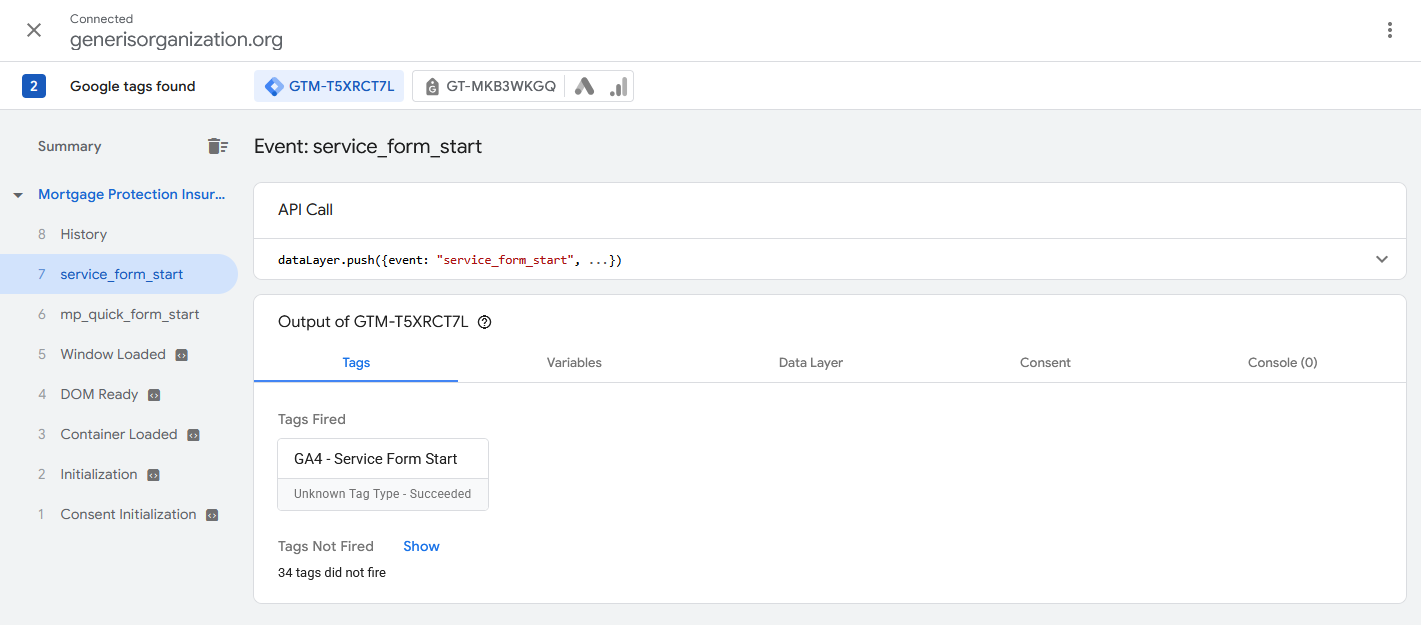
The screenshot shows a service-form tag check. Calculator-specific GTM/GA4 checks are separate evidence documented in the case study. Neither establishes Google Ads attribution, qualified leads, closed sales, revenue, conversion-rate improvement, or ROI.
Troubleshooting decision tree
Start with the symptom you can observe.
These controls are native disclosures, so every branch remains available without JavaScript.
The customer action did not complete.
Check: form validation, network response, booking confirmation, call routing, checkout state, and any browser error before debugging advertising tags.
Proves: whether the tested customer path reached its intended success condition. Tracking cannot repair a failed business action.
The action completed, but the tag did not fire.
Check: the exact GTM event, trigger conditions, consent state, container version, destination ID/label, and whether the test used the correct page or domain.
Proves: where the browser-to-tag handoff failed. It does not yet say anything about Ads reporting.
The tag fired, but the conversion action is not recording.
Check: the intended account and action, tag diagnostics, source, action status, processing time, consent, auto-tagging/linker behavior, cross-domain or iframe paths, and duplicate tags.
Proves: whether the configured signal can reach the intended action. A successful diagnostic still does not establish a qualified inquiry.
Google Ads records too many or too few conversions.
Check: One versus Every, transaction IDs, repeated success-page loads, duplicate destinations, imported GA4 events plus direct Ads tags, campaign goals, reporting dates, attribution settings, and processing delay.
Proves: whether the counting unit and report scope match the measurement contract.
The Ads number looks right, but the CRM outcome does not.
Check: whether the Ads action is a click, start, submit, call, or later stage; then reconcile timestamps and non-sensitive identifiers with accepted CRM, booking, call, or commerce records.
Proves: which layer diverged. It may reveal a tracking-definition gap, a handoff failure, or simply a difference between an early interaction and a later business outcome.
Safe verification checklist
Test without manufacturing a live business result.
Use an approved test path, test record, or controlled environment. Do not click your own ad, contact a real customer, send a real message, or create a live sales record merely to make a report move.
- Name the intended action and later outcome. Write the measurement contract before opening the tools.
- Confirm the correct property, container, Ads account, action, domain, and campaign. Similar names are not proof of identity.
- Use an approved test path. Protect consent, private data, customer records, budgets, and operational workflows.
- Verify the customer success condition. Capture the confirmation response or record that shows the action actually completed.
- Inspect the browser signal. Confirm the event name, trigger timing, required parameters, and single firing.
- Inspect GTM Preview or Tag Assistant. Check fired and unfired tags, IDs, labels, consent state, and duplicate destinations.
- Check GA4 DebugView if GA4 is in the design. Confirm property identity and parameters; do not use DebugView as final attribution proof.
- Review the Google Ads action and campaign goals. Check status, Primary/Secondary use, custom or campaign-specific exceptions, count, value, windows, and attribution.
- Allow for processing and compare equivalent reports. Align time zones, date basis, conversion action, and attribution scope.
- Reconcile the later business record. Document what matches, what does not, and which conclusions remain unknown.
Official documentation
Google documentation used for this guide.
Product interfaces and requirements change. Confirm current behavior in the linked documentation before changing a live measurement or bidding configuration.
- Troubleshoot conversion actions with Tag Assistant
- Troubleshoot conversion tracking status and reporting latency
- Understand and verify Conversion Linker behavior
- Monitor events in GA4 DebugView
- Create Google Ads conversions from GA4 events
- Review Google Ads data freshness
- Primary and secondary conversion actions
- Campaign-specific and custom conversion goals
- Conversion counting options
- Transaction IDs and duplicate conversions
- Sitewide tagging and conversion measurement
- Differences between Google Ads and other reporting
- Offline conversion imports and enhanced conversions for leads
Need a second set of eyes?
Test the signal before you optimize around it.
Bring the conversion action, landing path, and reporting question you need to verify. We can help define the evidence chain, inspect the implementation, and separate confirmed behavior from assumptions.